An alarm rarely lasts more than a few minutes, and the app has to work for someone who has never read a word about it. Knowing beforehand still helps. So here is what every single button does — at the end where someone presses, and at the end where the phone rings. The pictures are from the app.
Three seconds, every time. Every button that matters can be undone. The first tap starts a countdown with a ring running around the button, and it says what is about to happen and how many seconds are left. Tap again before the ring closes and nothing happens at all. That goes for "I'm coming", "Decline", "Call", "End alarm" and the circles in the forwarding sheet.
The one who presses
When you send an alarm
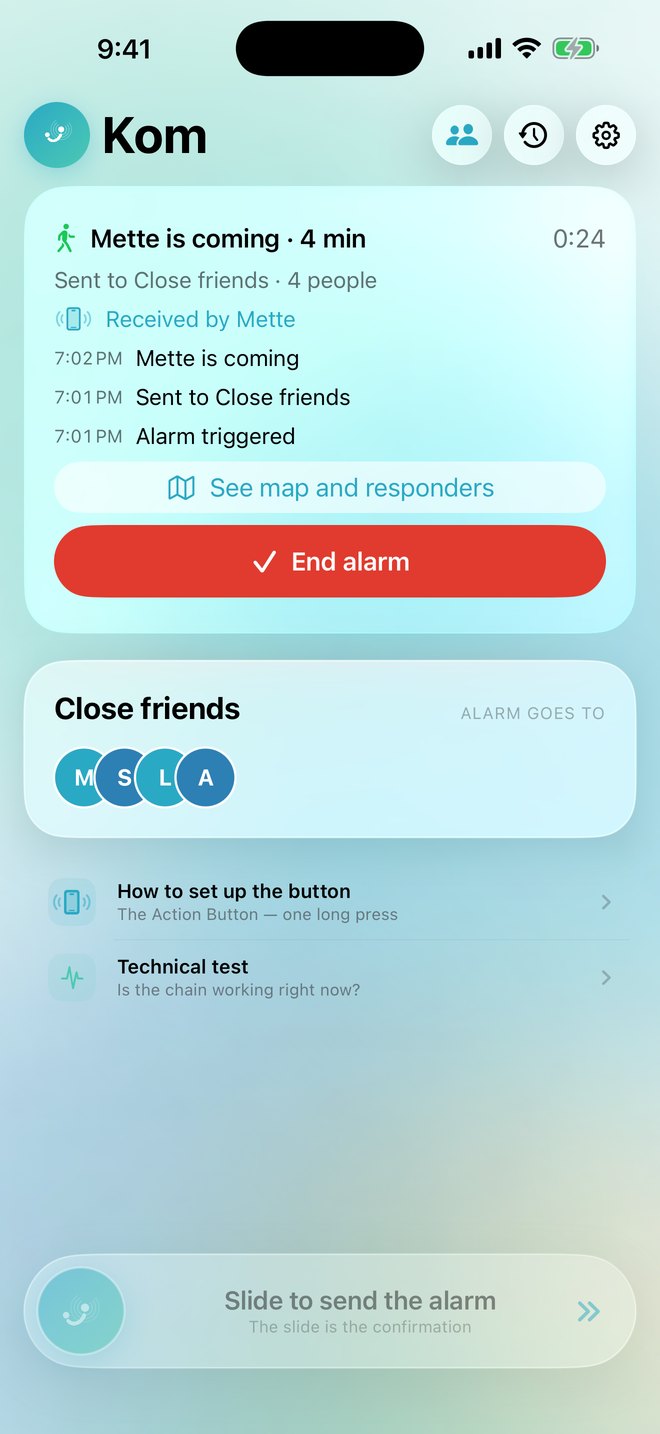
The home screen shows exactly two things: who the alarm goes to right now, and the button. While an alarm is running it sits at the top with the latest thing that happened.
The sender's home screen, a couple of minutes into an alarm. The newest line is on top — that's the one you look for.
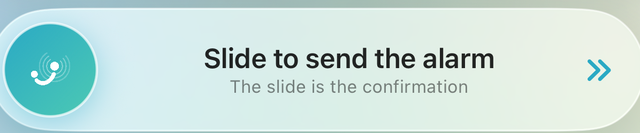
Slide to send the alarm
It sits at the bottom of the home screen and fills the width. You push the knob all the way to the right — the slide is the confirmation, so the alarm can't go off in your pocket. Let go on the way and it springs back, and nothing has happened.
The alarm is sent the moment you let go at the right-hand end. If your iPhone has an Action Button you never have to open the app at all — one long press does exactly the same thing.
With VoiceOver it is an ordinary double tap. A slide isn't a movement everyone can make, and then the app can't be used for what it is for.
3 · Sending alarm now… Tap to cancel
The countdown: "Sending alarm now…"
Right after the slide the rail turns red and counts 3 · 2 · 1. One tap on it cancels the alarm.
The countdown runs on the server, not on your phone. Lock the screen, put the phone in your pocket or close the app, and it keeps running — the alarm goes out anyway.
Waiting for replies…
The alarm is out. The line underneath says who it went to and how many people, and the number on the right is the time since you pressed. At this point no human has said anything yet.
Received by …
Not an answer from a person — a receipt from a phone: the message reached it. Good to know, but it is not the same as someone coming.
Mette is coming · 4 min
This is the only thing allowed to disturb you: a vibration in your pocket and one line saying who is on the way and how long it will take. The minutes are worked out on her phone, from where she is standing, and sent along.
With discreet mode on, the phone doesn't vibrate. The alarm is sent unchanged — the phone just doesn't give away that you pressed.
See map and responders
Opens the map with your own position and dots for the people on their way to you. It is the same screen the recipients see. Close it again — it doesn't touch the alarm.
End alarm
Ends the alarm for everyone. Three seconds of countdown, and one more tap undoes it. Everyone who got the alarm is told it is over — including the ones already on their way.
If the phone can't reach the server, the app doesn't pretend it closed. Then it says "The alarm is still running", and it keeps trying in the background.
Another long press on the Action Button
Pressing again while the alarm runs
No second alarm starts. The one already running moves up a level — which means "this is more urgent now". The next circle joins in: the on-call, the management, the rest of the building, depending on what has been set up.
Your position is updated at the same time, so the new people also know where you are now.
No one has replied yet Make the call — tap a name
When nothing happens: the numbers
If half a minute passes without anyone saying "I'm coming" — or if the alarm couldn't be sent at all — the app puts the names and numbers at the top of the home screen, in rows big enough for a shaking hand. One tap calls.
The list is stored on your own phone, so it works even when there is no way through to the server.
Follow me home
Not an alarm, but an agreement with yourself: say when you'll be home. Five minutes before, the phone asks from the lock screen whether everything is fine — you can answer "I'm OK" or "Extend 15 min" without unlocking.
If you don't answer, Kom sends the alarm by itself with your last known position, to exactly the same people as if you had held the button. Turn "Follow me home" on and they can watch the route on the way, too.
Check-in and "Follow me home" are part of Kom Plus.
The one who gets the message
When you receive an alarm
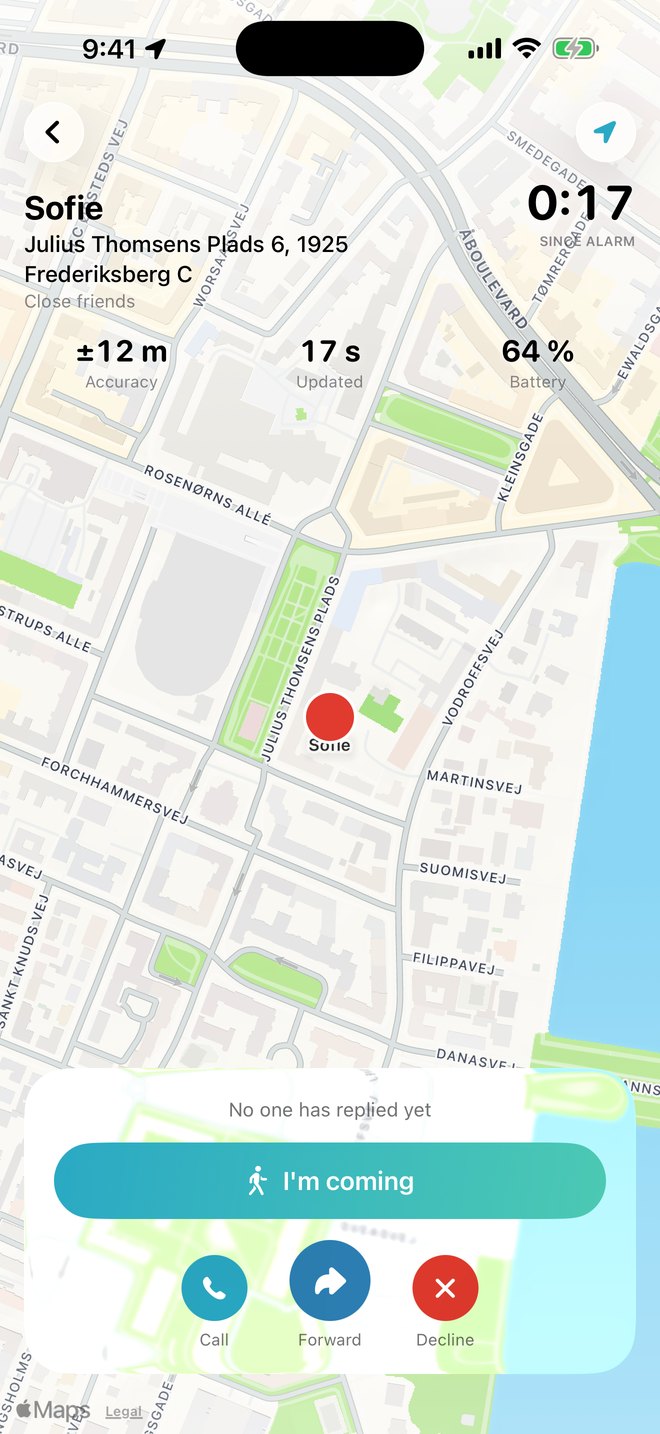
The map fills the screen, and the buttons sit together on one card at the bottom. At the top: the name, the address and how long the alarm has been running.
The recipient's screen. Everything big is the map; everything you have to tap sits within reach of a thumb.
I'm coming
The most important tap in the whole app. Three seconds of countdown, and the answer is on its way. Meanwhile the phone works out how long you'll take to get there — walking if it's under 2.5 km, otherwise driving — and sends the time along. The sender sees "Mette is coming · 4 min".
From the moment you tap, your position is shared with the people on the alarm, so they can see you getting closer. The sharing stops the second you mark yourself arrived, or when the alarm ends.
The alarm also sits as a bubble on the lock screen with "I'm coming" and "Decline". The answer is sent from there straight away; the map opens afterwards.
I've arrived
Once you have said you're coming, the big button turns into this one. It tells the others you are there — and your position stops being shared. It is not a button that closes the alarm.
All good
Appears once you have marked yourself arrived. It ends the alarm for everyone, with the message that it went well. Three seconds to undo, like everything else.
Assistance
Sits next to "All good". You are there, and it isn't enough. One tap passes the alarm to the next circle immediately and tells everyone on the alarm that you are asking for more help.
Those who haven't reacted yet — and those who had declined — get the alarm again as a new message with buttons. The ones already on their way are told quietly.
Call
Calls the sender. Three seconds of countdown, then the call opens. The button is grey if the sender hasn't entered a phone number in the app — Kom doesn't invent one.
Forward
Opens a sheet with the circles the sender or the organisation has set up — on-call, management, Mum. The button itself does nothing else; nothing has been forwarded yet.
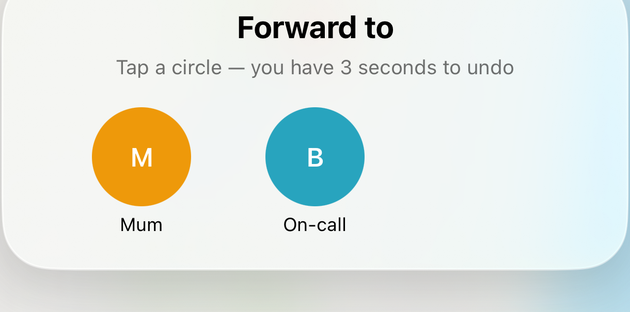
The circles in the sheet
Tap a circle — you have three seconds to undo. If the circle points at a group, the whole group gets the alarm now. If it points at a single contact, that one person joins.
Everyone on the alarm is told who it was forwarded to. The sender isn't disturbed by it; she is only disturbed by someone coming.
Messages opens with the text and link ready You press Send
When there is no app at the other end
If the circle is a phone number without Kom, Messages opens on your own phone with the text and the link ready. You press Send. Kom has no SMS gateway — the text is yours, sent from your number.
Whoever gets the link sees the sender's name, position and address on a map in the browser, and can answer "I'm coming" and call. No app, no account, no login. The link is a one-time key and only works while the alarm is running.
Forwarding to numbers without the app is part of Kom Plus.
Decline
Tells the others you can't. The button then stays as "Declined", and the big button goes back to "I'm coming" — you are always allowed to change your mind and come anyway.
If everyone in the circle declines, the alarm moves on to the next level by itself. Nobody should be left waiting for an answer that isn't coming.
Back
Closes the alarm screen. The alarm keeps running and your answer still stands — there is no button here that switches something off by accident.
If several alarms are running at once, a red button next to it says how many. That one takes you back to the list.
Follow again
The map follows the sender on its own. The moment you move it with your finger to look somewhere else, it stops following — and then this button appears in the corner and puts it back.
If the alarm is your own
Open the map on an alarm you sent yourself and there are no reply buttons. Instead it says "End alarm" — and below it "Close map", which simply puts the screen away without touching the alarm.
Figures and markers
The parts that aren't buttons
The rest of the alarm screen is information. It is there because you have to be able to judge the situation yourself — not because it looks good.
Accuracy · Updated · Battery
±12 m is how certain the position is. If it is worse than 30 metres, a red circle is drawn on the map so you don't search the wrong place — the uncertainty is not hidden.
17 s is how old the shown position is. 64 % is the sender's battery as it was when the alarm went out. It says something about how long she can be seen.
Since alarm
The time since the alarm was sent. It stops when the alarm is ended or called off, and stays on the final duration.
The dots on the map
The red dot with the quiet pulse is the sender. The mint dots with initials are the people on their way — with their time next to them, if they have one. A red ring around the sender means the position is uncertain, and the ring shows how big the area is.
DRILL and "asking for more help"
A drill alarm is a real alarm in everything but name: same screen, same buttons, same log. It is simply marked DRILL at the top and counted separately in the statistics. The same spot says if someone has tapped Assistance.
When a reply didn't get through
Tap "I'm coming" and the phone can't reach the server, and it says so right by the button: the answer hasn't got through yet, we're trying again, call if it's urgent. The screen only changes state once the server has confirmed. Anything else would be a lie — both to you and to the person waiting.
The buttons don't promise more than they do: there is no button that calls emergency services (iPhone doesn't allow it — a person has to make that call), none that starts a recording, and none that "detects" a fall. The critical sound is used for the alarm itself only, and only on phones whose owner has said yes. Replies, shift reminders and drills are never loud.
The rest of the story
Who the alarm goes to, what happens if nobody answers, and what it costs — that's all on the front page.